The short answer
Row HQ now has club and all-clubs erg leaderboards, weekly erg set pieces, phone calendar sync in the Row HQ app, and a member Plan view of the week. Away dates handle missed sessions. Race days have divisions with parking and boating maps. Coaches and admins also have new tools for running the club.
This update covers what we shipped between October 1 and November 4. I have grouped the changes by the jobs you do at the club. Some are ready to use. Your club needs to switch on the club erg board, member Plan tab and away dates first.
Erg leaderboards: Club and All clubs
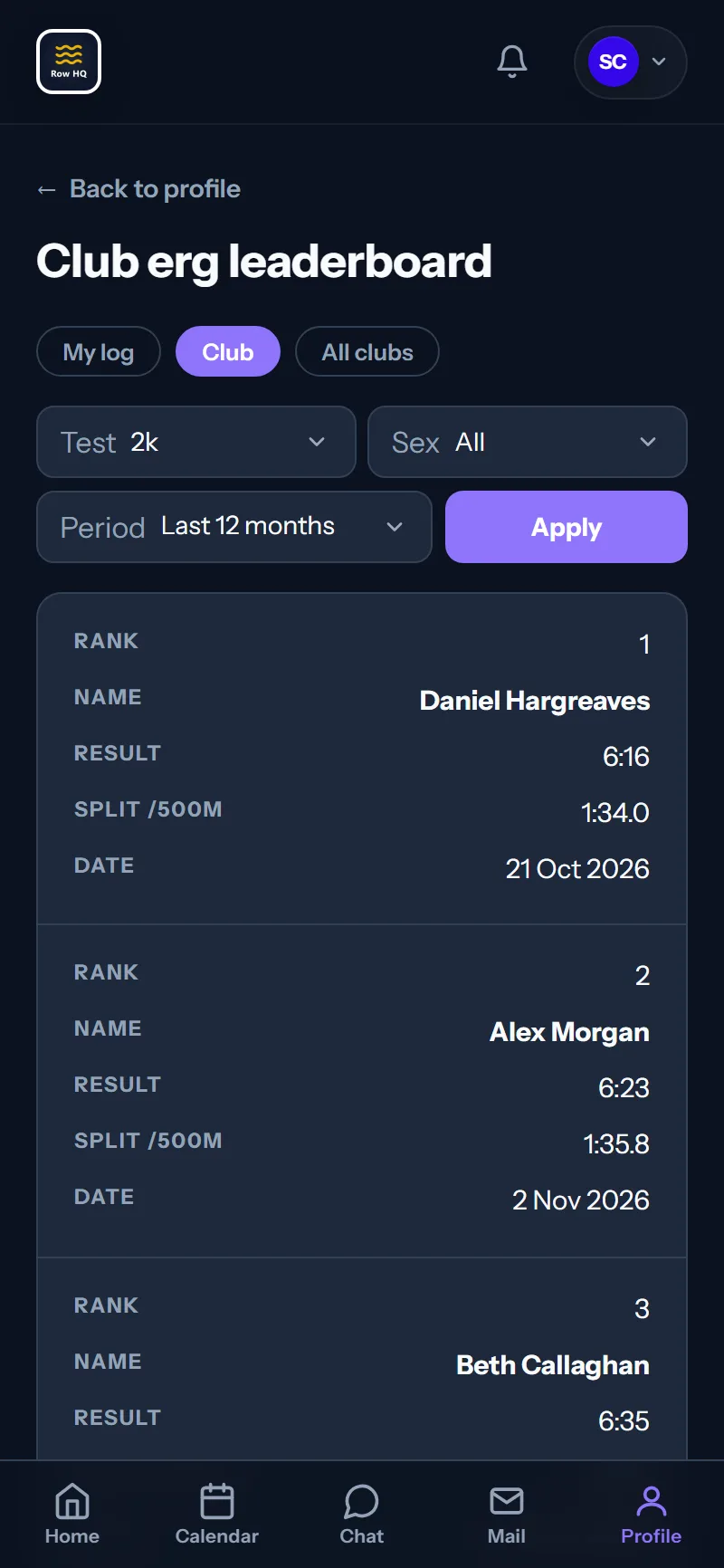
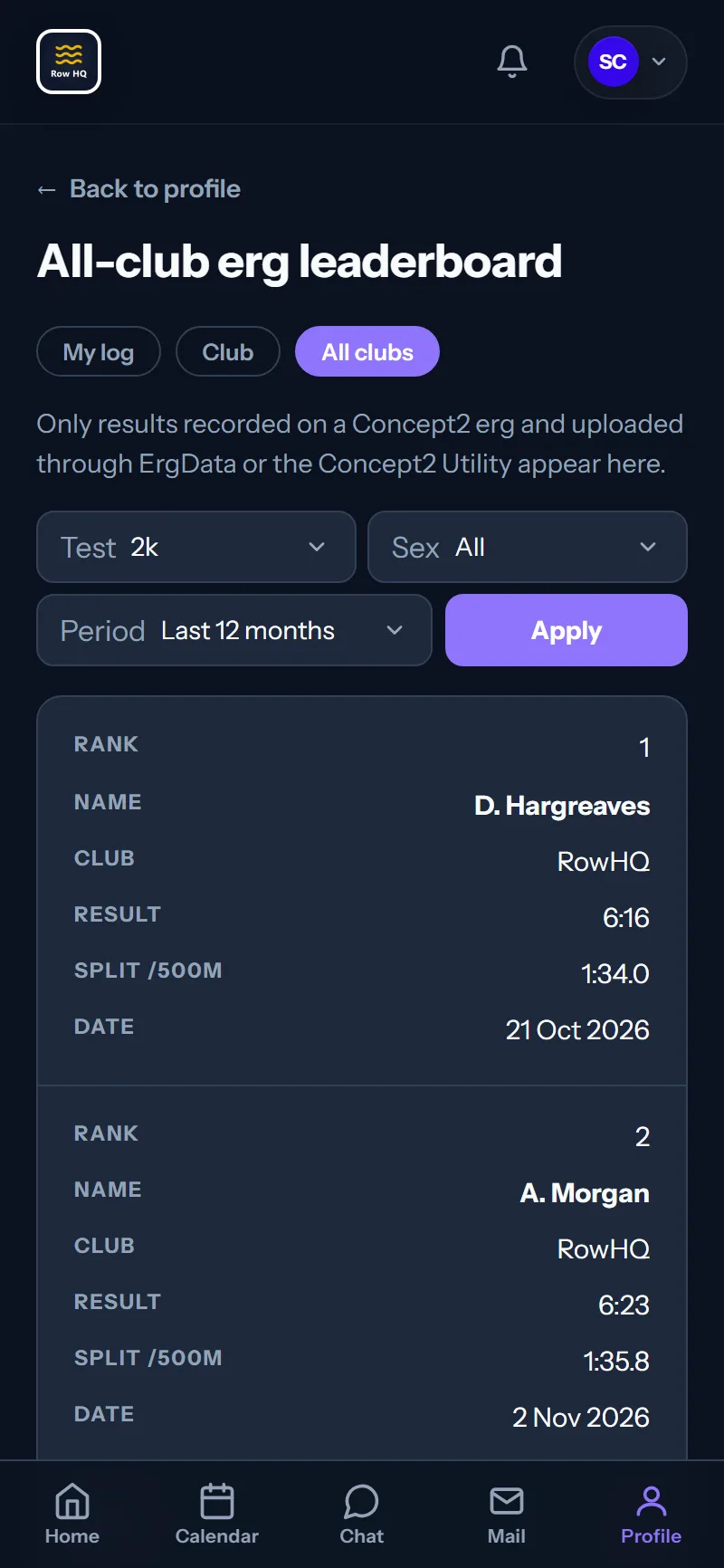
The Erg logs page now has Club and All clubs boards alongside My log. Your club board shows best scores for a chosen test and recent activity. The All clubs board only counts Concept2-verified scores, and you must choose to appear. Your own erg log stays available whichever sharing choices you make.
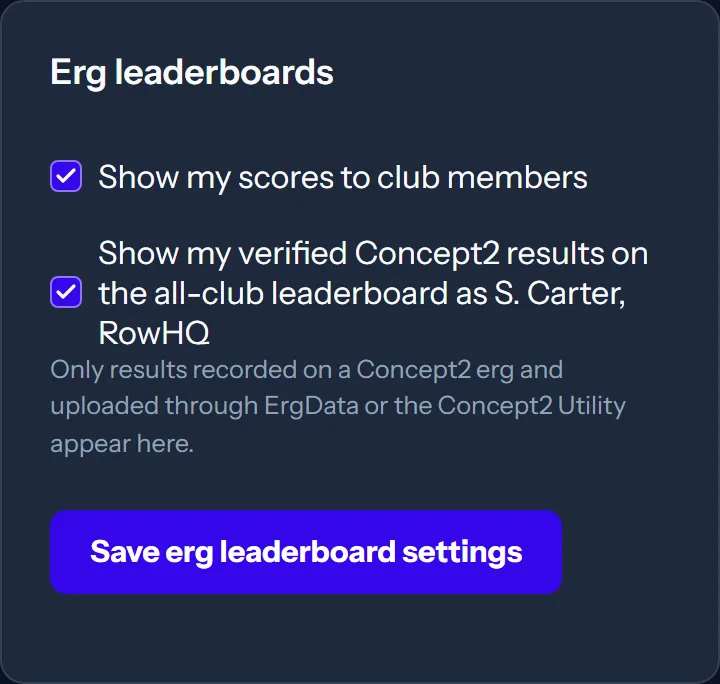
The two boards have different rules. A club admin must switch on the Club board. It starts off for every club. Once it is on, adult members are included unless they turn it off in their profile. Under-18s appear only when a parent or guardian ticks the choice on the child's profile, opened from the Family page.
All clubs brings together rowers across Row HQ. You must opt in, and your profile needs a date of birth showing you are 18 or over. Only results recorded on a Concept2 erg and uploaded through ErgData or the Concept2 Utility count. Names appear as a first initial, surname and club. Under-18s never appear on this board. A manually entered score can stay in your log without qualifying for All clubs.
Editing a Concept2-verified score in Row HQ removes its verified status. That edited result stops qualifying for All clubs. The All clubs choice sits in the Erg leaderboards section of your profile, even if your club has left its Club board off.
For the club admin
- Open the admin Erg scores page and tick Enable the club erg leaderboard when your club is ready to use it.
- Tell adult members that they can turn off club sharing in Profile > Erg leaderboards.
- Ask parents or guardians to make the club-board choice on each child's profile, opened from the Family page.
For the rower
- Open your profile and find Erg leaderboards.
- Choose whether to appear on the Club board and whether to join All clubs. The All clubs choice appears once your profile has a date of birth showing you are 18 or over.
- Open Erg logs and choose Club or All clubs to look at the boards.
- Choose the test, sex and period you want to compare. Use My log for your own results.
Joining All clubs does not depend on your club enabling its own board. If you want that wider comparison, the choice is in your profile. Keep a verified result unchanged if you want it to count there.
Weekly erg set pieces
Coaches can set an erg piece for a squad or all members over a date range of up to 31 days. Members see it on their dashboard and Erg logs page. They can complete it on any day in that range. If they have already rowed a workout in that range, they can choose Count this one to use it.
A weekly 5k is one example. The coach can see who has done the piece and enter results for those who still need one recorded. Coach-entered results stay in Row HQ. They are never sent to Concept2.
Set a piece as a coach
- Choose the piece you want members to complete, such as a 5k.
- Set its date range, up to 31 days.
- Assign it to a squad or all members.
- Check who has completed it and fill in any remaining results you need to record.
Log your result as a member
- Find the piece on your dashboard or Erg logs page.
- Complete it on any day inside the date range.
- Log the result. If you already logged a workout in that range, choose Count this one next to it under Already done it?
Deleting a set piece keeps every score.
Phone calendar sync in the Row HQ app
The Row HQ app can add signed-up sessions and events to a phone calendar you choose. Time changes and cancellations are picked up when you next open the app, and withdrawing removes the entry. Sessions you coach are included too. This arrived in version 1.0.6 on iPhone and Android. Maybe answers are not added to your phone calendar.
Parents also see their children's sessions. Each title starts with the child's first name, so the calendar entry identifies whose session it is. Row HQ only touches entries it created. Your other calendar entries stay as they are.
Turn on phone calendar sync
- Open the Row HQ app on iPhone or Android.
- Go to Profile > RowHQ app > Phone calendar.
- Turn it on and choose the phone calendar to use.
- Tap Attend on a session (or your club's own word for it) or sign up for an event. Check it in your chosen calendar.
Turning sync off, choosing a different calendar or signing out removes every upcoming Row HQ entry from the previous calendar. For a desktop calendar, use the private calendar subscription link on My Account. That link now carries the same signed-up items.
Get the Row HQ app: Download on the App Store Get it on Google Play
A week plan for every member
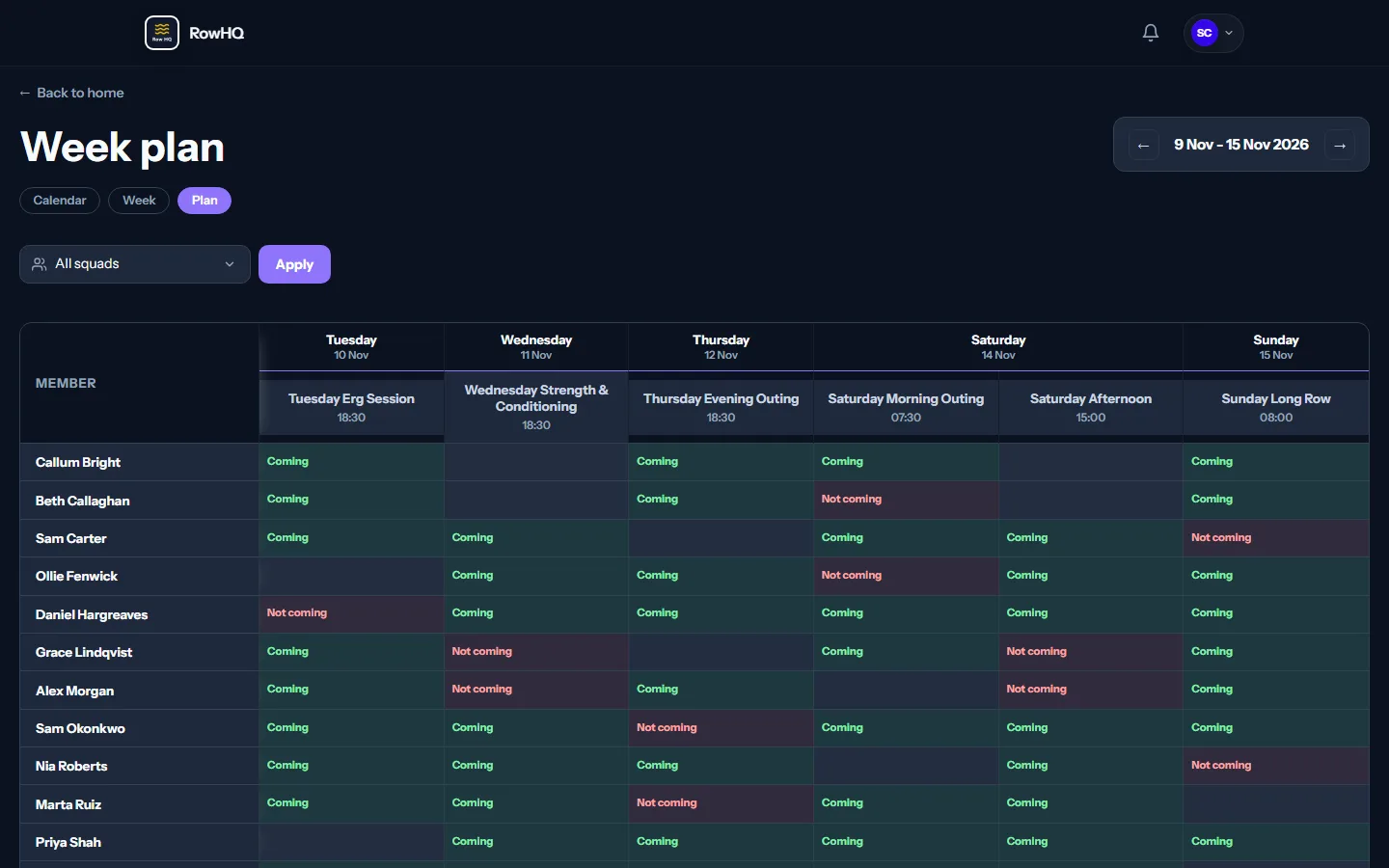
Every member can now see a read-only Plan tab on the Calendar when a club admin enables it. It shows names and answers for the week, limited to sessions that member can already see. Members cannot change anything there. The coach's Week planning page also now shows every member without an inner scroll box.
The member view is off until an admin switches it on in Calendar settings. It gives athletes a view of the week's plan without adding editing controls.
On the coach's page, all members sit on the page itself. There is no separate scroll box to work through. Days can still scroll sideways on a narrow screen.
Enable and open the member Plan tab
- As a club admin, open Calendar settings and tick Let members see the week plan.
- As a member, open Calendar and choose Plan.
- Read the names and answers across the week.
- Move to the next week to see that week's plan. The view remains read-only.
Away dates
Add an away period and Row HQ declines the covered upcoming sessions for you. It cancels unpaid session fees and frees crew seats and coach slots. When a seat or slot is freed, the session's coaches get an in-app notification. A range can begin or end in the morning or afternoon. If you answer a session by hand, your answer wins.
The club needs to enable away dates in Session settings on the session templates page. Members then use Calendar > Away dates. Parents can add a separate period for each child on the Family page. Admins can also add away dates for a member.
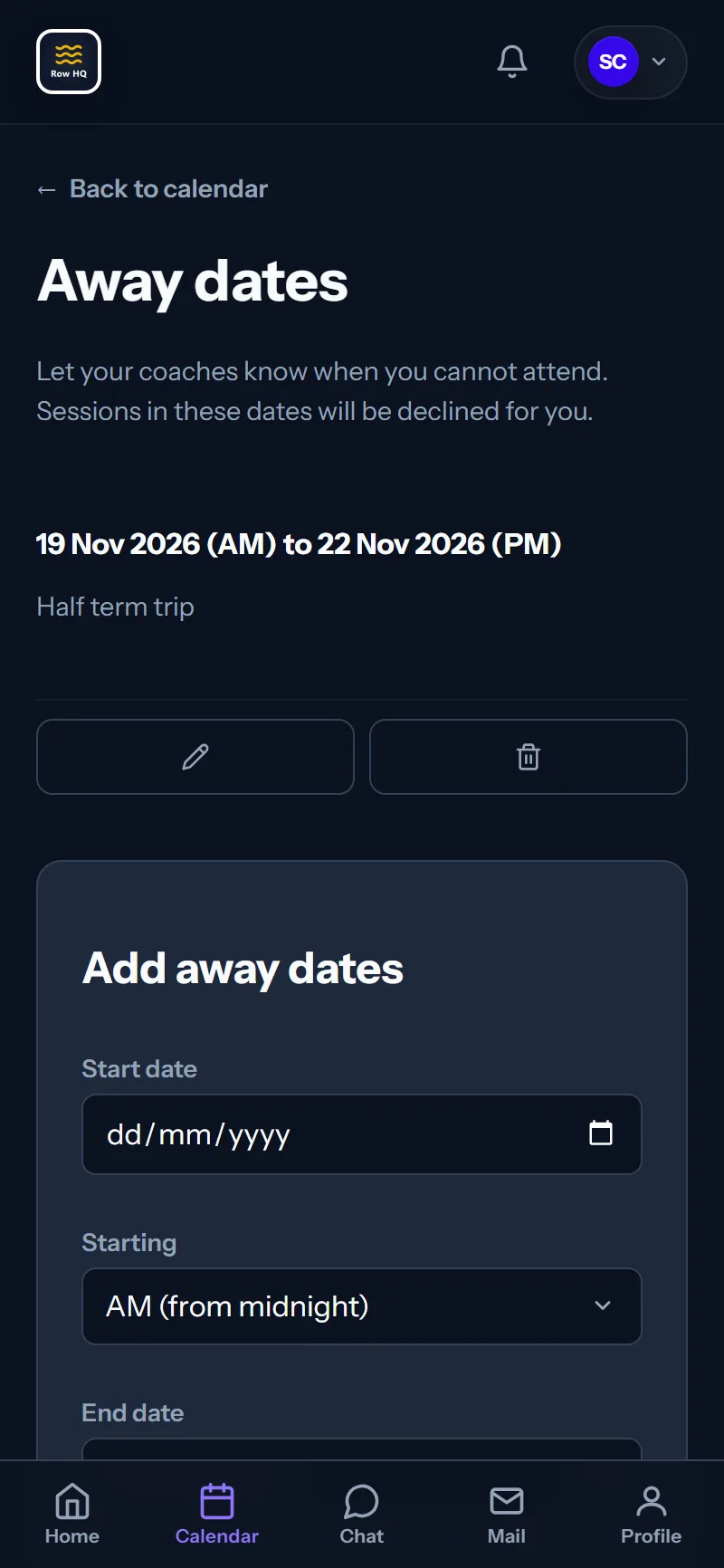
Add your next away period
- Ask a club admin to enable away dates in Session settings if the club has not enabled them.
- Open Calendar > Away dates. For a child, use their entry on the Family page.
- Add the start and end dates. Choose morning or afternoon halves where needed.
- Check the covered sessions. Row HQ declines them. If you held a crew seat or coach slot, the coaches get an in-app notification.
- If you need a different answer for one session, answer it by hand. That answer is remembered.
Overlapping away periods are refused. The Calendar shows a button with your next away dates.
Race days: divisions, times and where to park
One event can now hold several crew divisions, each with its own boating time and optional meeting and race times. Published divisions appear on the event page, with your own divisions first. Parking and Trailer and boating each have a note and an optional map pin, with Google Maps directions links on the member page when a map pin is set.
Divisions are added on the event's admin page, then crews are planned with the normal crew planner. On a multi-day event, each division belongs to a chosen day. A meeting time must be at or before boating. Boats and rowers can be reused between divisions of that event. Clashes with other events and training remain blocked.
On the admin form, Parking and boating sits under Location. Members see Parking: and Trailer and boating: under the venue. Use Parking for car arrival details and Trailer and boating for the trailer or boating area. Each can carry a note and a directions link when a map pin is set.
Prepare the event (owner or admin)
- Add the divisions to the event and give each one a name and boating time.
- Add a meeting time and race time where needed. On a multi-day event, choose the day for each division.
- Use the normal crew planner to plan crews for each division.
- Under Location, fill in Parking and boating. Add notes and map pins where needed.
- Publish the divisions so members can see them on the event page.
Check your race day as a member
- Open the event page. Your own published divisions appear first.
- Check the meeting, boating and race times shown for your division.
- Read the Parking and Trailer and boating notes. Use their directions links for the mapped locations.
Owners and admins can also choose Plan crews on any event that takes answers and is not canceled. It opens the session crew planner. That arrived earlier in October, before divisions.
Make the app fit your week
You can choose two to five pages for your phone bottom bar in Profile > Bottom bar. The Calendar now has a Week view that lists the week and remembers your last view. A club can also replace Coming with its own word, such as Available, across the sign-up button, status pills and attending list.
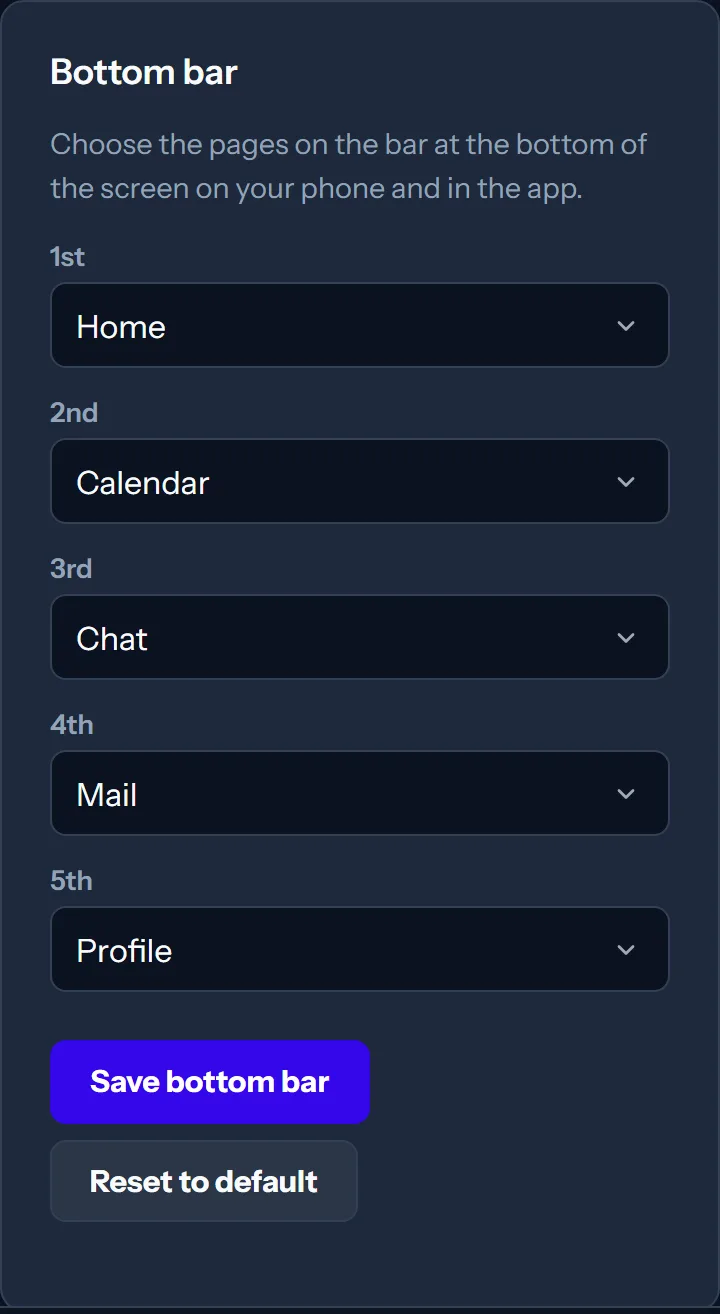
Choose your everyday view
- Open Profile > Bottom bar and choose between two and five pages.
- Open Calendar and choose Week to see the week as a list.
- Use the view that suits you. The Calendar remembers the last one you used.
The word for Coming is a club choice. Your bottom bar and last-used Calendar view are personal choices. The Week list and the read-only Plan tab are separate views.
New tools for coaches
Coaches have clearer calendar and crew views. Sessions they coach now appear under Mine before they answer. Clubs can show squad and skill markers beside members, and calendar dots now separate standby, cox and maybe answers. Crews can no longer double-book a rower. The cards below explain each change.
Coaching sessions under Mine
Open Mine on your calendar to see the sessions you coach, even before you answer.
Squad and skill markers
When a squad or skill level has its marker switched on, a small colored square with a one or two character code sits beside members on crews, standby lists and the attending list. Look under each boat for the color key.
Crew clashes and alerts
Crews can no longer double-book a rower. The club can also switch crew alerts on or off. These are separate changes: switching alerts off does not make a double booking valid.
Calendar answer colors
Standby now appears as a hollow dot on the calendar. Cox and maybe answers have their own colors.
New tools for club admins
Admins can import members before sending welcome emails, print a joining QR poster and use automatic squad labels. Applicants can choose a squad when applying. There are also school chat choices, an option to switch off session registers, and how-to videos inside the app. Each club now uses its own time zone. Admins can also hide a future session and add a banner to one event.
Hide a future session
Owners and admins can hide a future session from members without canceling it. Nobody is told. Answers and crew seats stay in place, and unhiding reverses the change. This control is not available to coaches just because they coach.
A banner for one event
Upload a banner for an individual event to replace the event type's image on that event.
Import first, welcome later
Use the checkbox on the member import to import without emailing people. When you are ready, open Members and use Send welcome emails for those members.
Join QR poster
Open Settings > Joining the club for QR codes for the join and application links. Print the one-page A4 poster for a new-student or open-day stand.
Squad choice on applications
Applicants can choose a squad when they apply to join. Only squads marked as open to applicants are offered.
Optional session registers
If your club does not use session registers, the club owner can switch them off on the Features page.
School chat settings
One setting keeps a member counted as a junior until September 1 after reaching the club's junior age. Another stops juniors sending or receiving private messages. Group chat is unaffected by that private-message switch.
Automatic squad labels
Every squad gets a label that follows its roster and coaches. Use it to limit documents to a squad. A safety credential can also be held automatically through labels.
How-to videos in the app
The app now includes how-to videos for admins, coaches and members. Topics include ergs, payments, safety and boat booking.
The club's time zone
Each club runs on its own time zone for session dates, sign-up windows, events, polls and alerts.
Questions
Most questions are about three choices: who sees your erg scores, which phone calendar gets your sessions, and whether members can change the week plan. In short, the club board and member Plan tab stay off until an admin turns them on, and a session you answer by hand always keeps your answer.
Is the club erg board on automatically?
No. A club admin must switch it on. Adult members are then included unless they turn it off. Under-18s only appear if a parent or guardian ticks the choice on the child's profile, opened from the Family page.
Can I join All clubs if my club board is off?
Yes. The All clubs choice is in the Erg leaderboards section of your profile, whether or not your club board is on. It appears once your date of birth shows you are 18 or over. Only results recorded on a Concept2 erg and uploaded to Concept2 count, and under-18s never appear.
What if I edit a Concept2-verified score?
Editing it in Row HQ removes its verified status. The edited score no longer qualifies for the All clubs board.
Does deleting an erg set piece remove the scores?
No. Deleting a piece keeps every score. Coach-entered results are never sent to Concept2.
Does phone calendar sync include Maybe answers?
No. It includes signed-up sessions and events, plus sessions you coach. Parents also see their children's sessions, with the child's first name at the start of the title.
Can members edit the week from Plan?
No. The member Plan tab is read-only. It shows names and answers only for sessions the member can already see. A club admin must enable it in Calendar settings.
Can I attend a session during my away dates?
You can answer that session by hand. Your answer takes priority over the away period and is remembered.
What happens when I turn phone calendar sync off?
Every upcoming Row HQ entry is removed. Choosing another calendar or signing out also removes the upcoming Row HQ entries. Row HQ only touches entries it created.
Get your club started
Row HQ is free for clubs with up to 20 members. If your club already uses it, start with the settings above and choose the tools you need. If you are considering Row HQ, the getting-started page and pricing page are linked below.
See you at the boathouse.
Jason Burns